The single decision that determines whether a loyalty program works in the Philippines is whether your customer has to install something. ScalePlus is built around the answer: never. One QR poster, one scan, one branded card on the customer's phone, and they're enrolled — no app store, no permissions dialog, no friction. Here's exactly how it works and why we built it this way.
Why QR beats apps in PH
Three numbers explain it. Filipino smartphone owners install on average 26 apps in their lifetime. Of those, 18 are pre-installed before they even buy the phone. The remaining 8 slots are hotly contested — and they go to apps that earn their place over months, not minutes.
Your café, salon, or restaurant is not going to win one of those eight slots in the first visit. Asking for an install is asking the customer to pre-commit to a relationship that hasn't started yet. Most won't do it, and the ones who do will uninstall within a week.
QR sign-up flips the question. Instead of "are you willing to install our app to get points?" it asks "scan this thing on your phone to save the card." The customer doesn't have to make a decision about your brand at all — they're just opening a browser, the same way they'd open any link. Friction drops to near zero, and sign-up rates run 4-5× higher than app-based programs in the same vertical.
The customer's journey from scan to redemption
1. Scan. Customer points their phone camera at your QR poster. iOS and Android both auto-detect the QR and pop up a "Open this link" prompt. They tap it. No QR-reader app needed.
2. Card opens. A branded HTML page loads in their default browser — Safari on iPhone, Chrome on Android. Your logo, your colors, your business name, a brief description, and a sign-up form (name + phone, optionally email and birthday). Total page weight is ~80 KB; loads in <1 second on 4G.
3. Sign up. Customer types their name and number, taps Save. The card transitions in place — no new page, no redirect — and now shows their balance, their tier (if you run tiers), their progress to the next reward, and your contact details.
4. Save to home screen (optional). A small banner suggests adding the card to their home screen. One tap and they get a branded icon — looks identical to a real app, lives next to Lazada and Shopee.
5. Earn. On any subsequent visit, they show the QR on their card. Cashier scans, types the bill amount (or taps Punch), and the customer's card refreshes immediately with the new balance.
6. Redeem. When they hit a reward threshold, the card shows a redeem button. They tap it at the counter; the cashier confirms the redemption on the scanner side; the reward fires.
The cashier flow: six seconds, any tablet
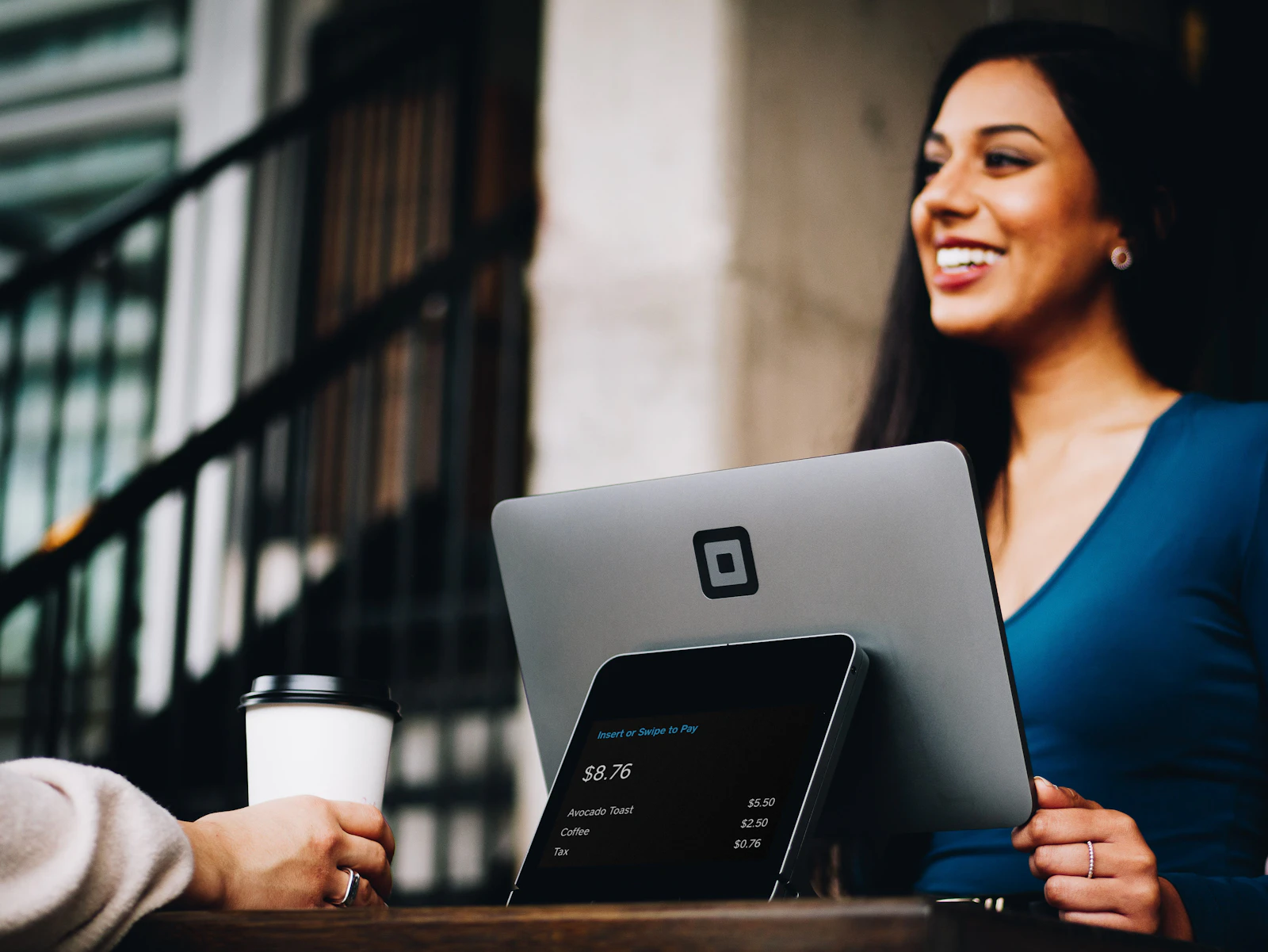
Open the Cashier Toolkit (any browser, any tablet, any phone, any laptop). Three things on the screen: a scanner viewfinder, a numeric keypad, and an Award button.
- Customer holds up their card QR — cashier points the tablet at it.
- Customer's name and current balance appear on the cashier screen.
- Cashier taps the bill amount on the keypad (e.g. ₱340).
- Cashier taps Award. Done.
The whole loop is about six seconds end-to-end. Faster than swiping a credit card, slower than a tap-to-pay. Critically: it doesn't slow down the line because the QR scan happens during checkout, not before it.
PWA install: the optional shortcut
The customer card is a Progressive Web App (PWA). On Android Chrome, your customer can install it to their home screen with one tap, and from then on it opens like a native app — full screen, no browser chrome, branded launcher icon.
On iOS, install requires three taps (Share button → Add to Home Screen → Add). It's a worse UX than Android, but worth doing for clients who want push notifications on iOS — Apple only allows web push from PWAs that have been installed.
None of this is required. Customers who never install can still use their card by re-scanning the QR or opening the bookmark — the program works identically.
What happens when WiFi drops
The cashier scanner is offline-tolerant. If the connection drops mid-shift, scans queue locally on the tablet's IndexedDB. The status pill at the top of the scanner shows "Offline · 4 queued." When connectivity returns, the queue drains automatically and customer balances update. Nothing is lost.
The customer card is also offline-tolerant in a more limited way. The most recently loaded version of the card stays viewable when the customer is offline — it just can't show real-time balance updates until they reconnect. Once they're back online, the card refreshes silently.
Printing your QR: poster, PNG, SVG
From your dashboard, go to Settings → Sign-up link. You'll see your business's QR with three downloads:
- Printable poster (PDF, A4 + A5). Includes your logo, a one-line headline, the QR, and brief instructions ("Scan to join — no app required"). Designed to print well on regular office paper.
- QR as PNG (1024×1024). For inserts, table tents, receipt footers, social media.
- QR as SVG. Vector format, scales infinitely. Use this if you're working with a designer on a custom poster.
The QR encodes your business's signup link directly (no shortener, no redirect). It works whether the customer scans it from a printed poster, from a screenshot, or from a digital sign.
FAQ
Why QR instead of a phone app? Filipino consumers won't install your café's loyalty app. A QR opens a browser they already trust. Sign-up rates run 4-5× higher.
What kind of QR code do I need to print? ScalePlus generates it for you — PNG, SVG, and a printable poster.
Where should I put the QR poster? Where the customer is already standing at payment. Visibility doubles sign-up rates.
Does it work on a low-end Android phone? Yes. The card is plain HTML, ~80 KB, loads on any phone from the last 8 years.
How do customers find their card after they sign up? Browser remembers the URL; "Add to Home Screen" prompt; rescannable QR.
Launch your QR-first loyalty program in 5 minutes
Free for your first 50 members. No credit card. No app for your customers.